SLA Configuration
SLAs, or Service Level Agreements, define a vendor's contractual performance obligations. Many global regulations, including DORA, require companies to define SLAs with their critical vendors.
Clarative allows you to track and monitor three types of SLAs:
- Uptime SLAs: when the vendor is contractually obligated to keep their IT service(s) running with high fidelity, Clarative can automatically track whether these services remain usable and performant.
- Vendor-Reported SLAs: when the vendor has a concrete, measurable obligation that your organization tracks by repeatedly requesting performance data directly from the vendor (or from the business owner if performance is tracked internally), Clarative can track these obligations by automating data collection and evaluation.
- Qualitative SLAs: when the vendor has a contractual obligation not fitting either of the other two categories, you can describe the vendor's qualitative SLAs and list them among the others to help your team remember to keep track of them manually.
Creating an Uptime SLA
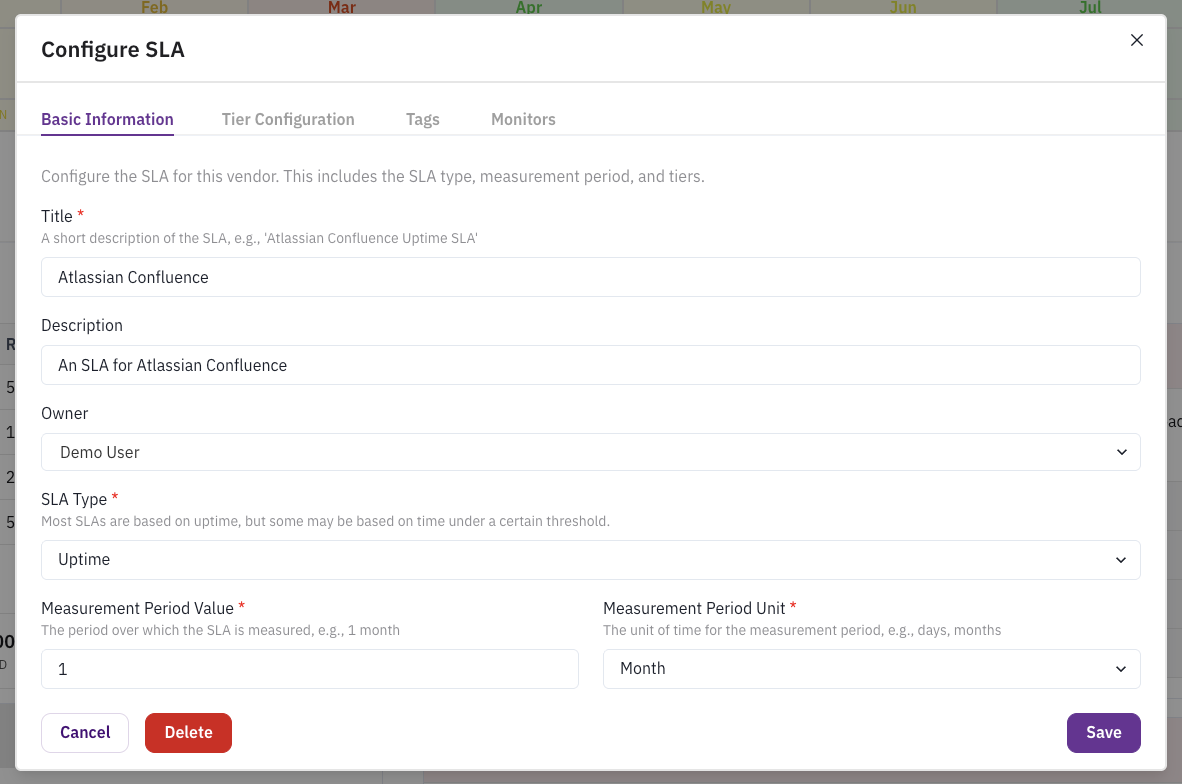
- Create a Monitored SLA: Navigate to the Performance Monitoring tab of any vendor to see all SLAs. Click Add above existing SLAs, or Configure Uptime Monitoring if no SLAs exist for that vendor.
- Clarative supports incident monitoring for many vendors, but not all vendors. If you don't see the option to configure tags, please reach out to support@clarative.ai to request incident monitoring for your vendor.
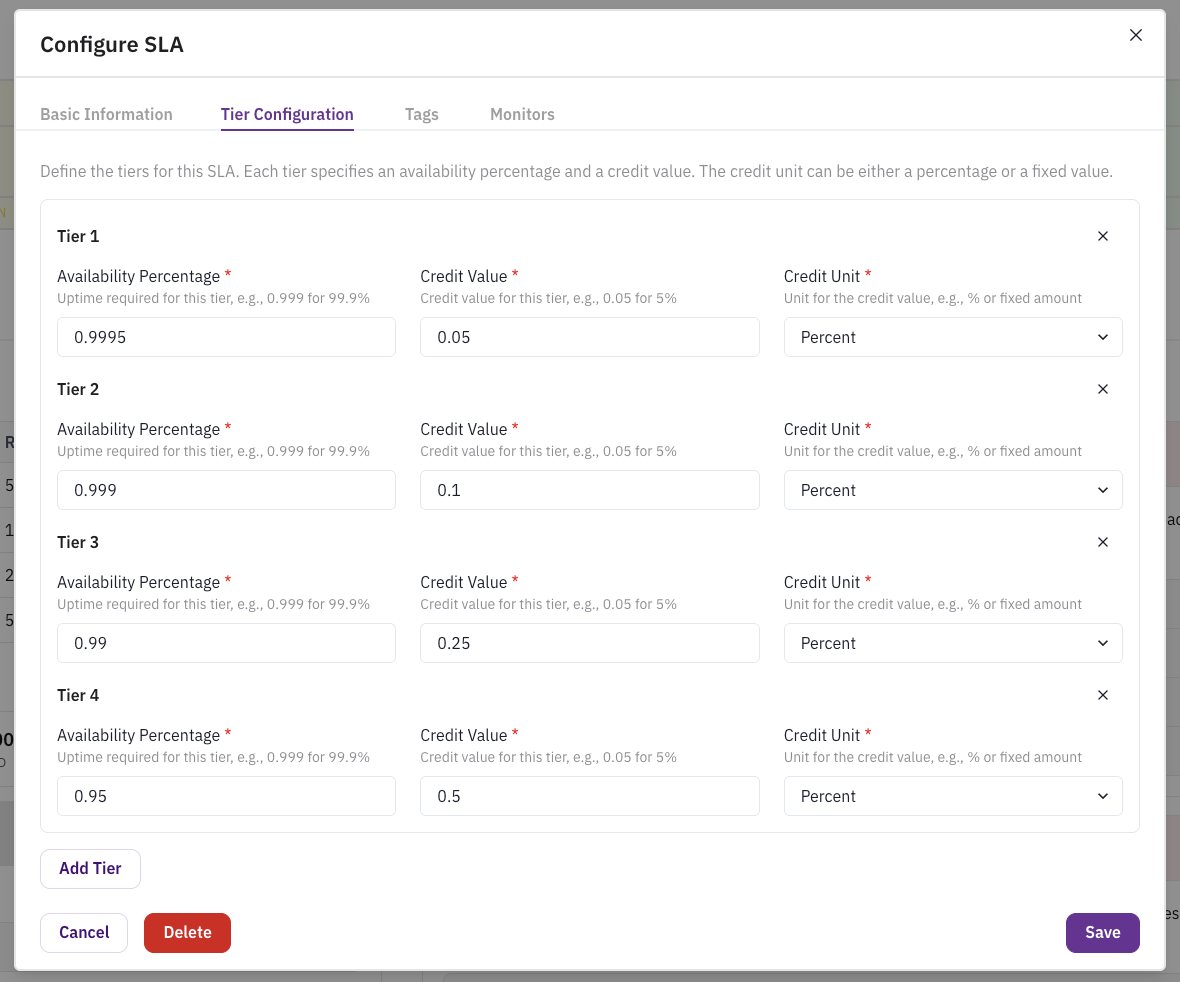
- Configure SLA Tiers: Add tiers to the SLA to represent the service tiers contained in the SLA document.
- Percentages should be represented as a decimal, so 95% uptime should be entered as
0.95and a 10% credit should be entered as0.1. - There are two types of supported uptime SLAs, standard Uptime SLAs and "Time Under" SLAs. Almost all SLAs will be standard SLAs.
- If an SLA document specifies a percentage but not a remediation, enter
0for the credit percentage.
- Percentages should be represented as a decimal, so 95% uptime should be entered as
Configuring Data Sources
Clarative SLAs can use synthetic monitors and/or vendor-reported incidents as data sources. For your SLA to track data, you must also configure one or both of the following:
(a) Incident Tags: Select the products, services, and regions that are relevant for the SLA.
- These filters will be used to calculate the SLA violations as well as to filter risk events in the triage workflow.
- Products are a high-level description of the solution, services are more granular offerings for the solution, and regions specify specific infrastructure the solution runs on.
- For example, if you are configuring an SLA for AWS S3, you would select AWS as the product, S3 as the service, and whichever regions (e.g.
us-east-1) your organization uses.
(b) Synthetic Monitor(s): Select synthetic monitors as a data source for the SLA.
- Only monitors tied to the SLA's vendor will appear as options, so you may need to create one first.
Creating a Vendor-Reported SLA
- Navigate to the Performance Monitoring tab of any vendor to see all SLAs.
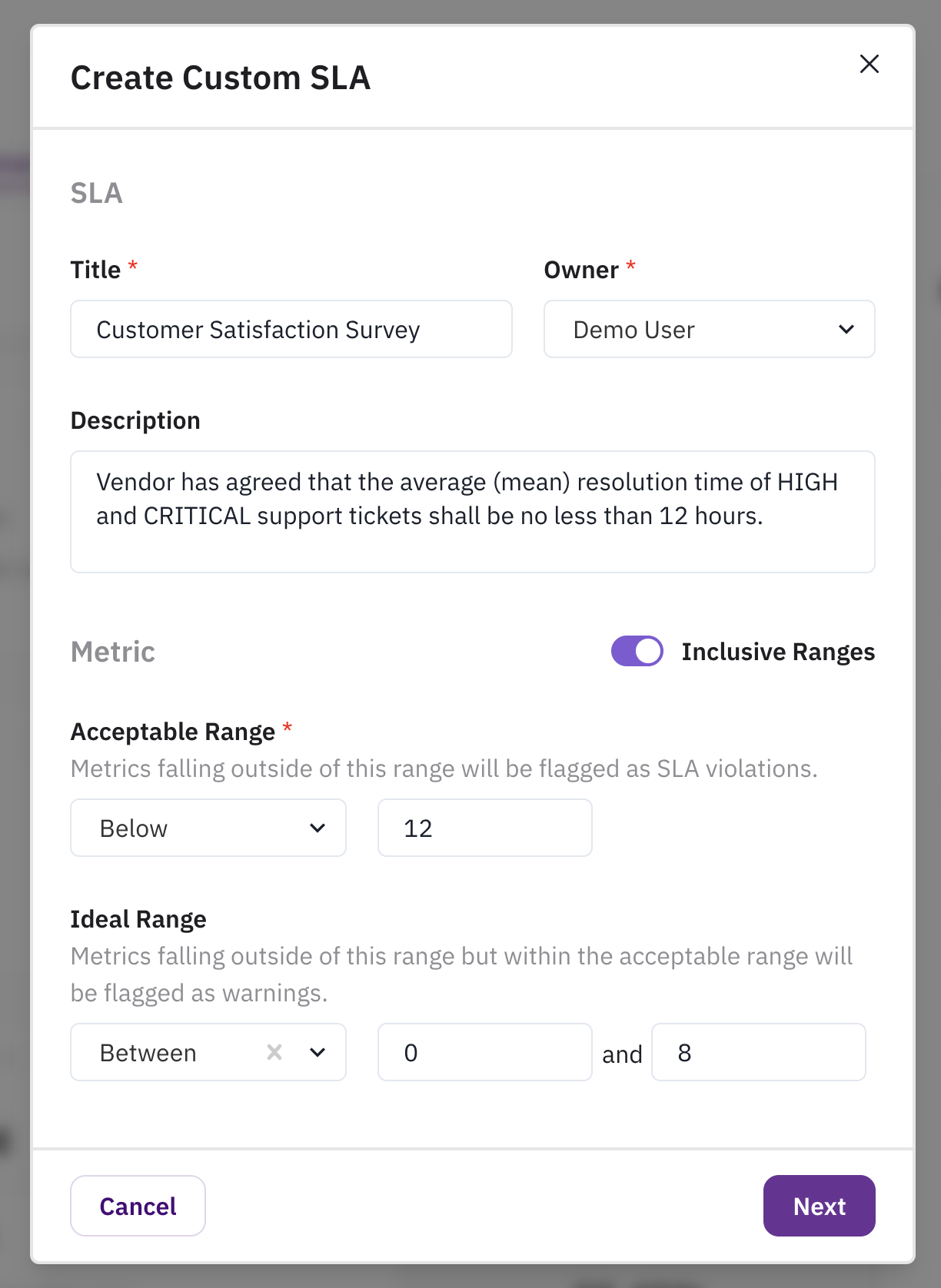
- Follow the flow to create an Uptime SLA, but select "Custom" instead of "Uptime".
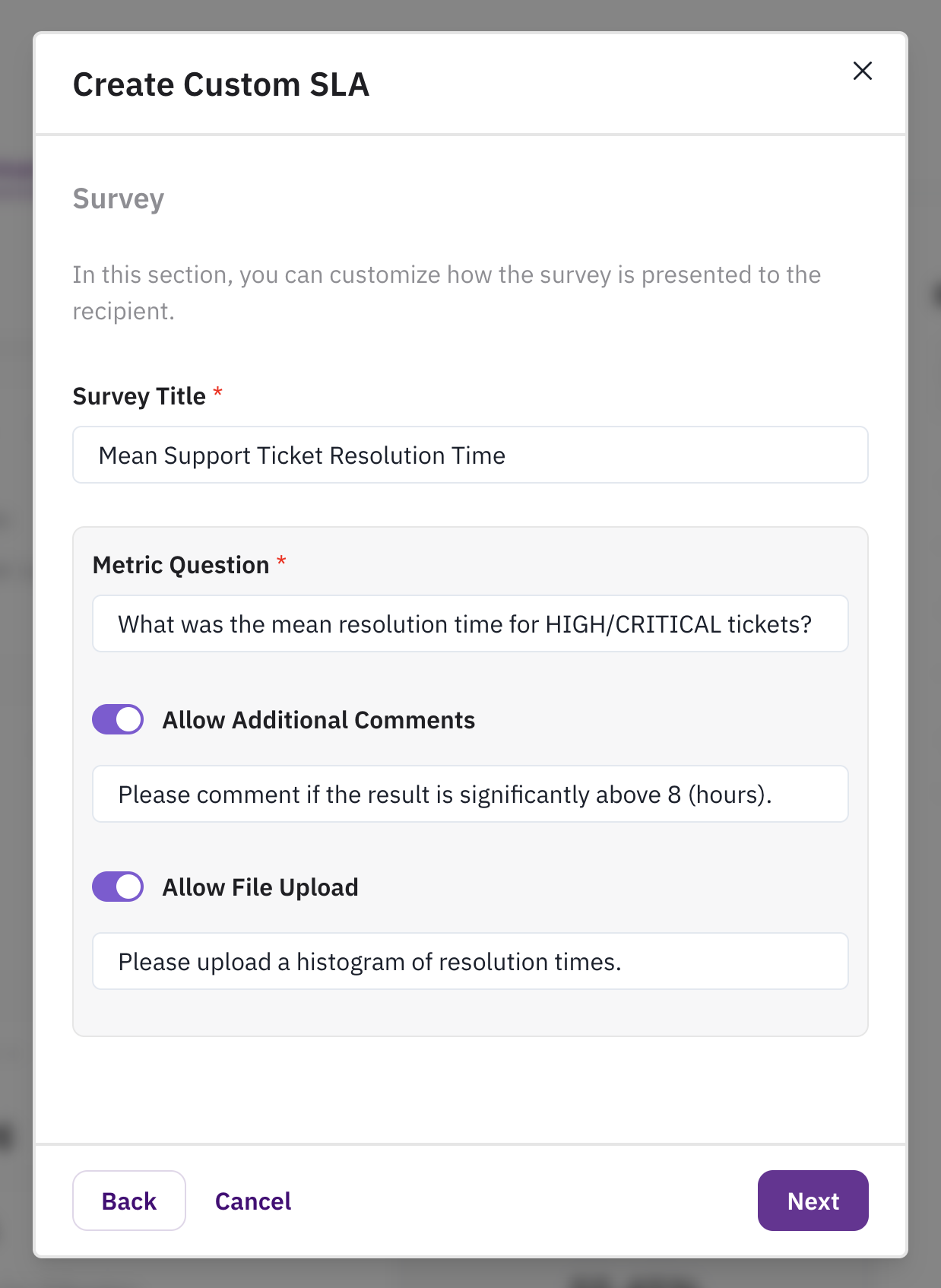
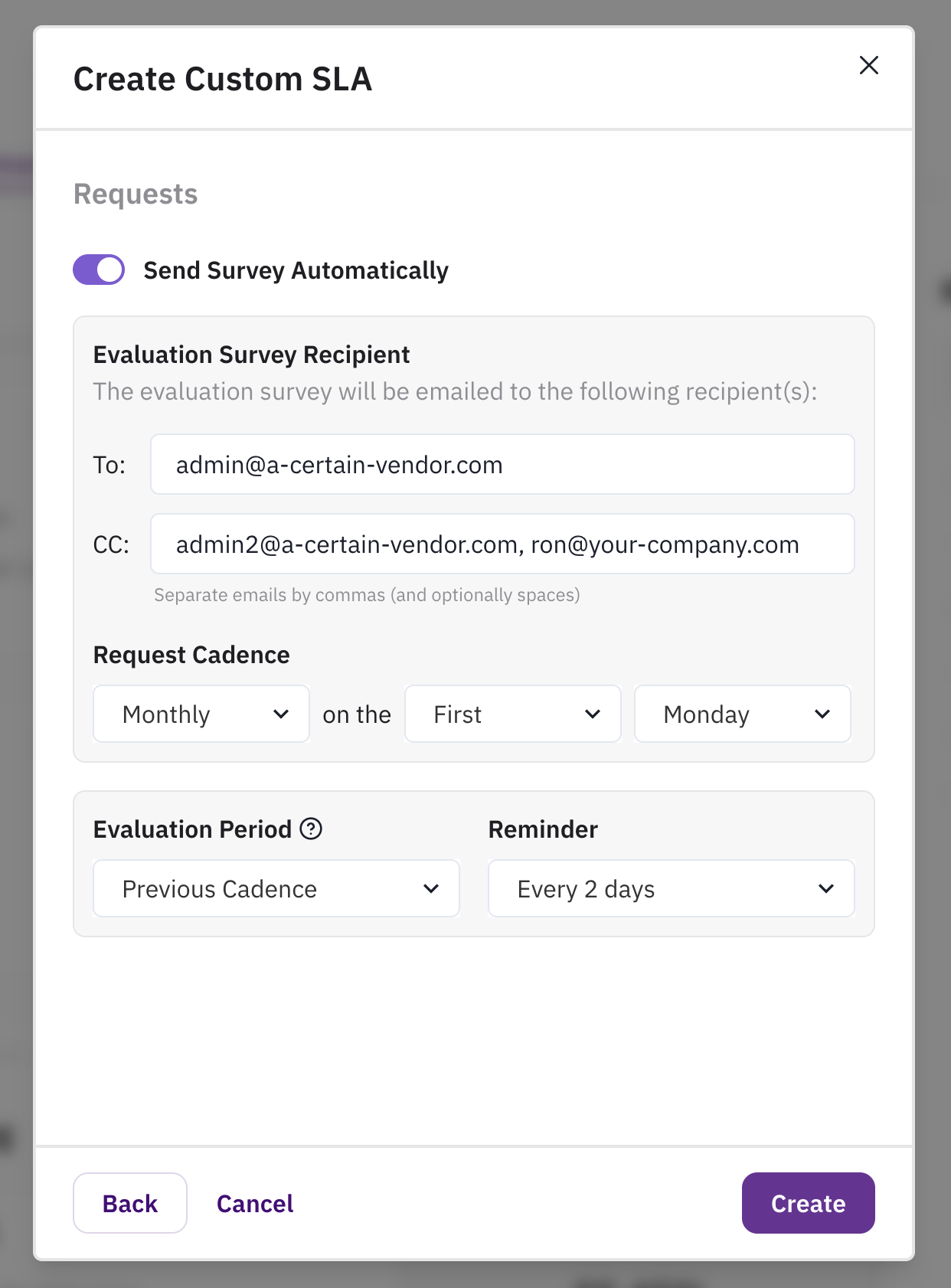
- Fill out the SLA configuration.
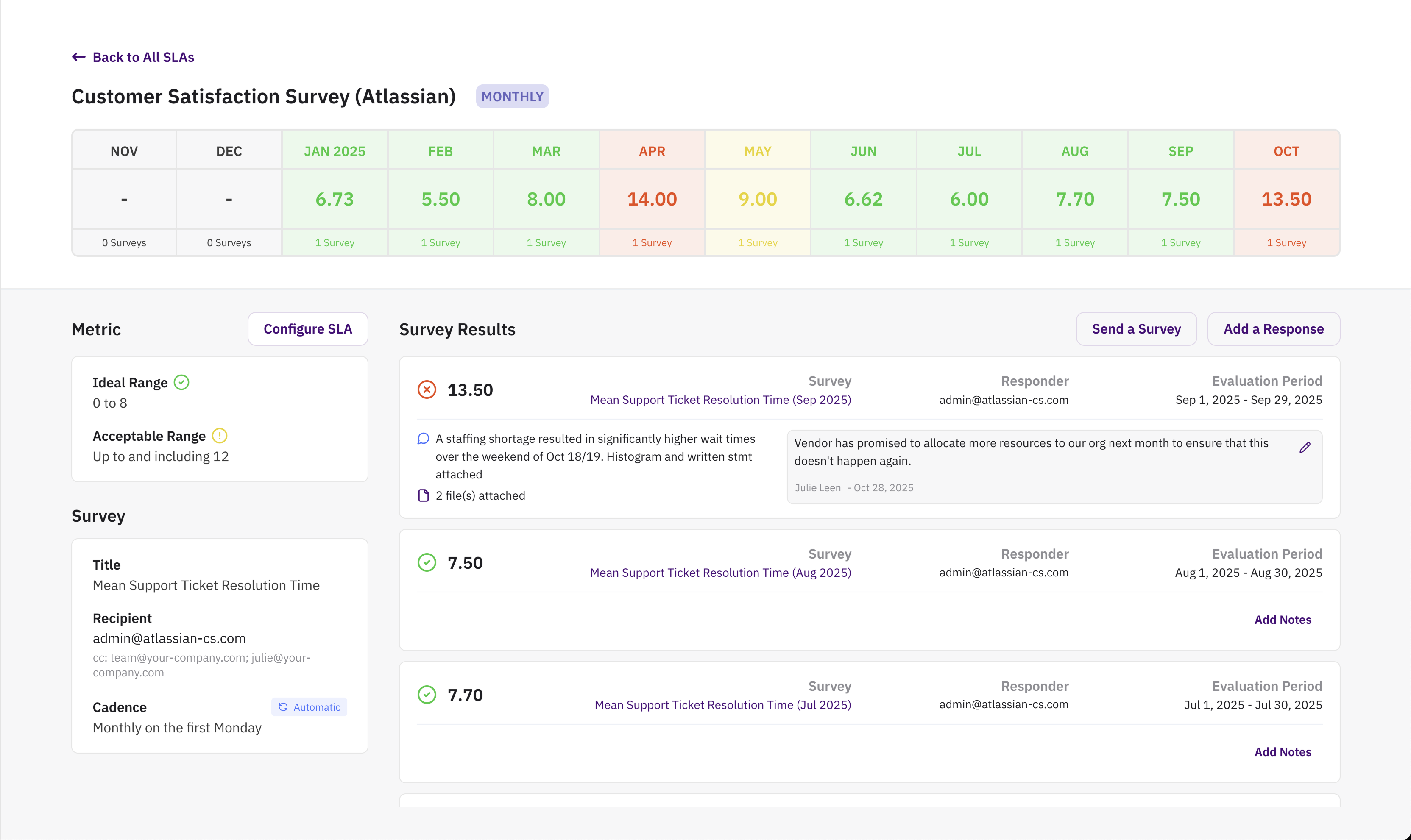
If you configure your survey to be sent automatically, you should be able to passively collect the data you need to track vendor performance with respect to this SLA. Clarative's Performance page will surface any violations or overdue surveys across all of your SLAs.
If you wish, you can even import historical data to your new SLA to immediately visualize trends over time.
Here is a typical example:
Creating a Qualitative SLA
To track a qualitative obligation:
- Navigate to the Performance Monitoring tab for any vendor.
- Scroll to the Other Obligations section and click Add.
- Enter a description of the obligation.
- Set the status:
Active,Complete,Needs Review,Pending Vendor,Requires Action, orUnder Review. - Track by updating statuses, adding notes, or requesting data from vendors.
Need Help?
Contact support at support@clarative.ai.